- I recommend you to follow the current guide that's not on the Archive
I'm aware that this is an Archive (click here)
Setup: Anki
- Anki is a SRS flash card program for card reviewing and the due dates are decided by the algorithm
- Mobile is supported
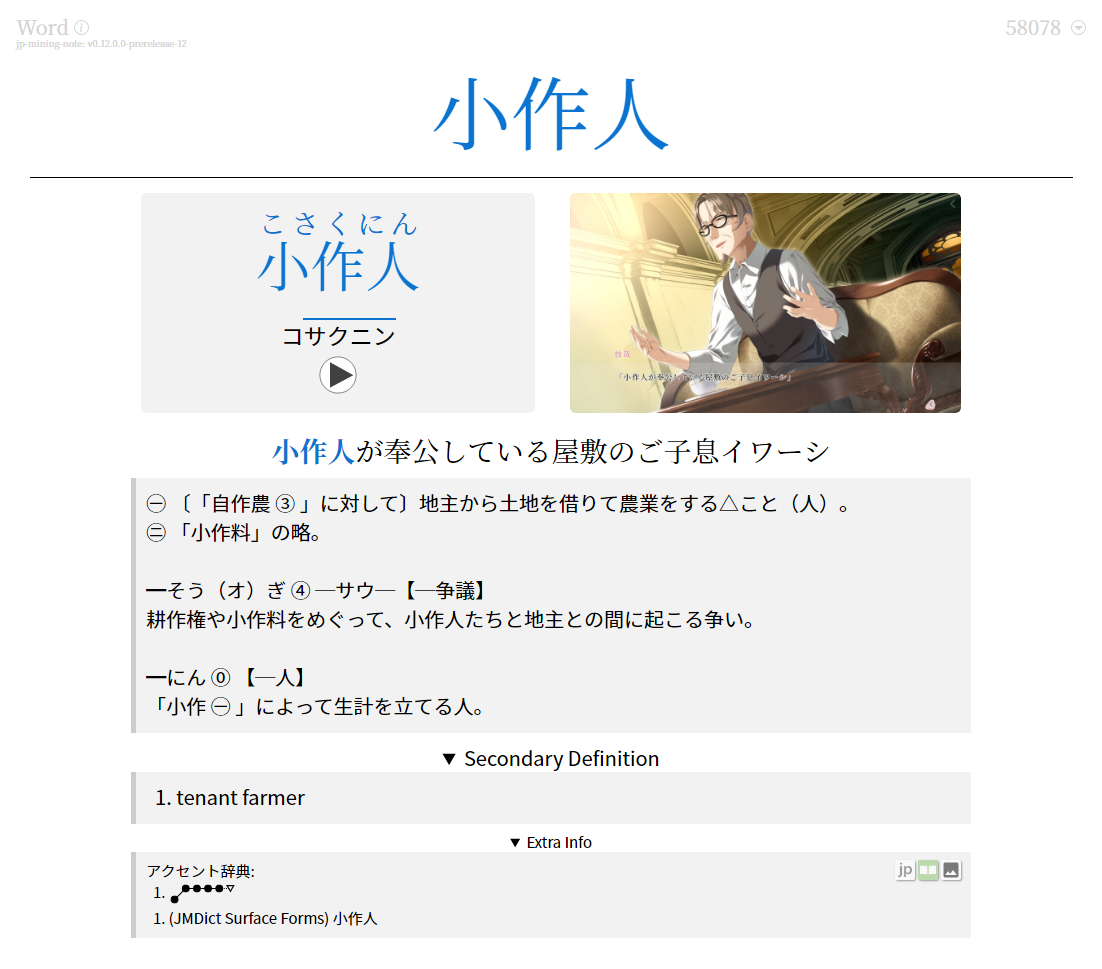
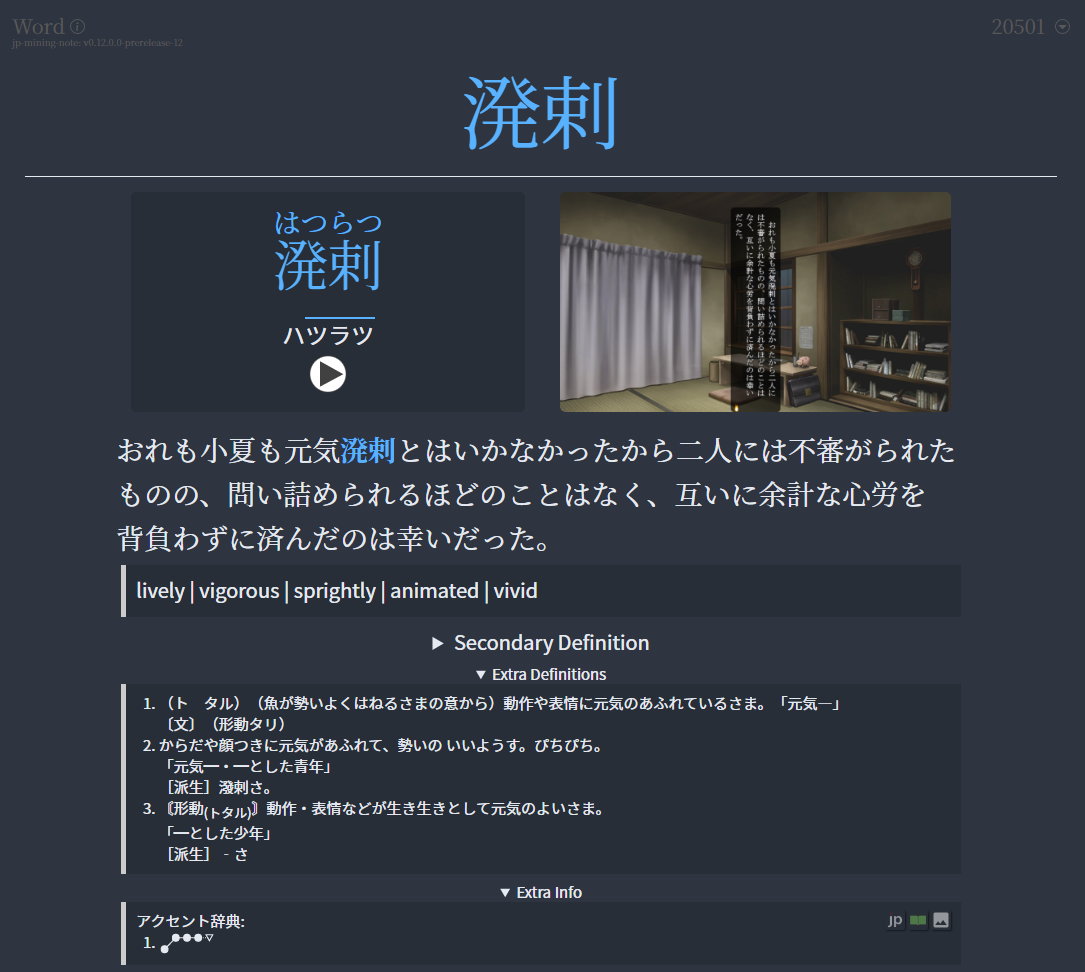
- Anki Light | Dark Mode
- Transferring from other Anki Format?
- Updating your existing JPMN Format?
- Go to Updating: Anki JPMN Note
Download and Install
- Install
PCAnki (Please don't useQt5) - Download Anki addons (Pass:
lazyguide)
Setting Up
-
Open Anki and create an account and profile by clicking the
Syncbutton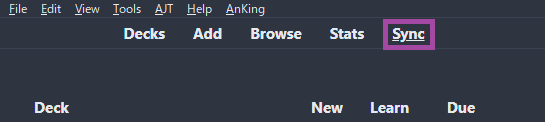
-
Extract(?)
Anki addons21.7zand paste theaddons21folder toC:\Users\**YourUser**\AppData\Roaming\Anki2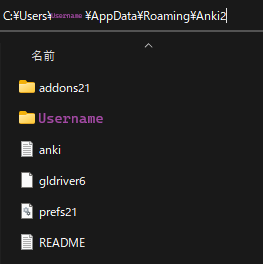
-
Restart your Anki, then
Ctrl + Shift + AORTools>Add-ons>Check for add-ons update- Update the
addonsthen restart it again
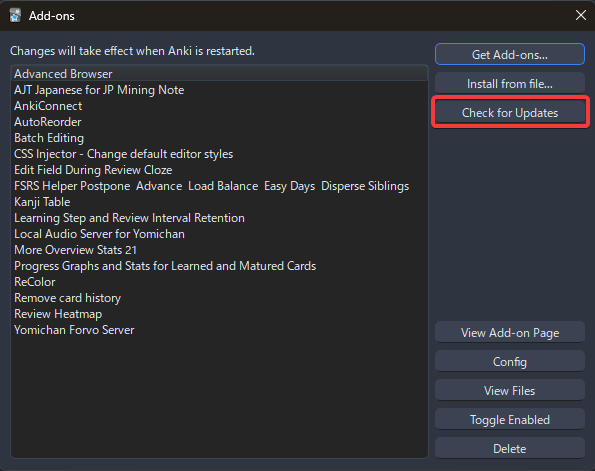
- Update the
-
In Anki:
Tools>JPMN Manager>Install jp-mining-note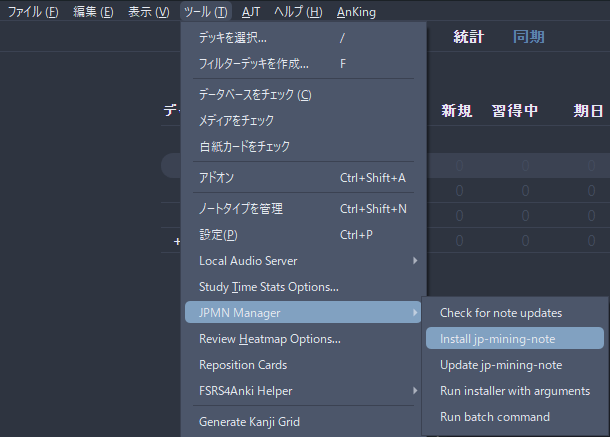
-
Rename
JPMN-ExamplestoMining Deck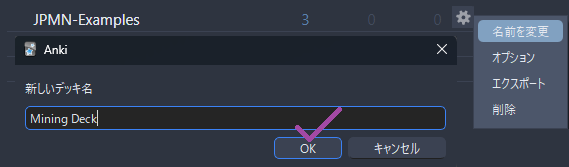
-
Go to:
C:\Users\**YourUser**\AppData\Roaming\Anki2\**YourAnkiName**\collection.media-
Search
_jpmn-options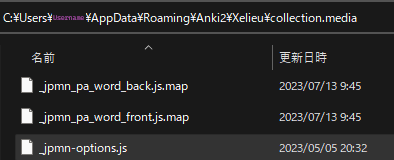
-
Edit(using notepad) and replace everything with the config below
_jpmn-options config (click here)
window.JPMNOptions = {

    // Insert any runtime options here! They should be of the form:
    //
    //     "key": value,
    //
    // Some common examples are shown below.

    // Enables colored pitch accent
    "autoPitchAccent.coloredPitchAccent.enabled": true,

    // Enables image blur
    "imgStylizer.mainImage.blur.enabled": true,

    // Hides the first line of most definitions, as well as the number in the list
    "blockquotes.simplifyDefinitions.enabled": true,

// ==========================================================================
    // = keybinds =
// ==========================================================================

    // RESERVED KEYS (by anki):
    // - e (edit)
    // - r (replay)
    // - t (stats)
    // - y (sync)
    // - i (card info)
    // - o (options)
    // - a (add)
    // - s (idk exactly what this does tbh)
    // - d (deck)
    // - f (filtered deck options)
    // - v (play recorded voice)
    // - b (browse)
    // - m (menu)
    // - 1, 2, 3, 4 (again, hard, good, easy)
    // - 5 (pause audio)
    // - 6 (audio -5s)
    // - 7 (audio +5s)
    // - space (good)
    // - enter (good)
    //
    // RESERVED KEYS (by AJT Flexible grading):
    // - u (undo)
    // - h, j, k, l: hard / again / good / easy
    //
    // FREE KEYS:
    // - (left)  q w g z x c
    // - (right) p n 8 9 0 , . ; ' [ ]
    //
    // If you want to customize the keybinds, you must find the exact key code
    // that corresponds to your key. To do so, set "debug-level" to 0, press the
    // desired key(s), and look at the bottom of the debug log (under the info
    // circle) within the note. You may need to scroll down.

    "keybinds.enabled": true,

    // Keybind to toggle between showing the sentence and word on click and hover cards.
    // Equivalent to either clicking on the sentence/word on a click card,
    // or hovering over the word on a hover card.
    "keybinds.toggleHybridSentence": ["KeyN"],

    // Keybind to toggle between showing the tested word in a raw sentence card.
    // Equivalent to clicking on the "show" button.
    // This is the same as the above because both should never happen at the same time.
    "keybinds.toggleHighlightWord": ["KeyN"],

    // Keybind to toggle a vocab card's full sentence display (front side).
    // Techinically can be Shift / n as it doesn't interfere with the other two above.
    "keybinds.toggleFrontFullSentenceDisplay": ["Quote"],

    "keybinds.playSentenceAudio": ["KeyP"],

    "keybinds.playWordAudio": ["KeyR"],

    // Equivalent to toggling the hint show/hide
    "keybinds.toggleHintDisplay": ["Period"],

    "keybinds.toggleSecondaryDefinitionsDisplay": ["KeyQ"],

    "keybinds.toggleAdditionalNotesDisplay": ["BracketRight"],

    "keybinds.toggleExtraDefinitionsDisplay": ["KeyW"],

    "keybinds.toggleExtraInfoDisplay": ["BracketLeft"],
}
-
-
In Anki:
Browse> on the left side underNote Type>JP Mining Note>Card...>Styling> Scroll down to the bottom- Paste The Anki
Stylingconfig AFTER theINSERT CUSTOM CSS BELOWline- Editing only 1 card is enough for this to take effect on everything
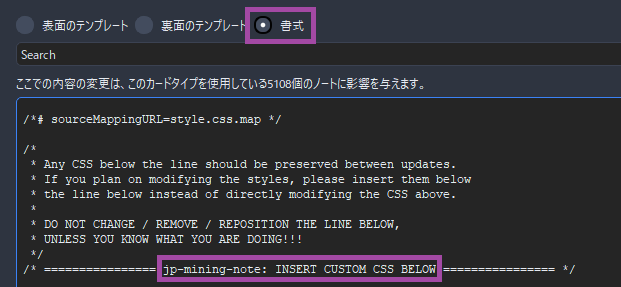
Anki Styling config (click here)
.glossary-text ol li[data-details="旺文社国語辞典 第十一版"] .dict-group__tag-list { display: none; } .glossary-text ol li[data-details="旺文社国語辞典 第十一版"] .dict-group__glossary--first-line { display: none; } .glossary-text ol li[data-details="旺文社国語辞典 第十一版"] .dict-group__glossary--first-line-break { display: none; } .glossary-text ol li[data-details="三省堂国語辞典 第七版"] .dict-group__tag-list { display: none; } .glossary-text ol li[data-details="三省堂国語辞典 第七版"] .dict-group__glossary--first-line { display: none; } .glossary-text ol li[data-details="三省堂国語辞典 第七版"] .dict-group__glossary--first-line-break { display: none; } .glossary-text ol li[data-details="実用日本語表現辞典"] .dict-group__tag-list { display: none; } .glossary-text ol li[data-details="実用日本語表現辞典"] .dict-group__glossary--first-line { display: none; } .glossary-text ol li[data-details="実用日本語表現辞典"] .dict-group__glossary--first-line-break { display: none; } .glossary-text ol li[data-details="新明解国語辞典 第八版"] .dict-group__tag-list { display: none; } .glossary-text ol li[data-details="新明解国語辞典 第八版"] .dict-group__glossary--first-line { display: none; } .glossary-text ol li[data-details="新明解国語辞典 第八版"] .dict-group__glossary--first-line-break { display: none; } .glossary-text ol li[data-details="明鏡国語辞典 第二版"] .dict-group__tag-list { display: none; } .glossary-text ol li[data-details="明鏡国語辞典 第二版"] .dict-group__glossary--first-line { display: none; } .glossary-text ol li[data-details="明鏡国語辞典 第二版"] .dict-group__glossary--first-line-break { display: none; } .glossary-text ol li[data-details="JMdict (English)"] .dict-group__tag-list { display: none; } .glossary-text ol li[data-details="JMdict (English)"] .dict-group__glossary--first-line { display: none; } .glossary-text ol li[data-details="JMdict (English)"] .dict-group__glossary--first-line-break { display: none; } .glossary-text--primary-definition ol { list-style: none; padding-left: 0em; } - Paste The Anki
-
Go to your
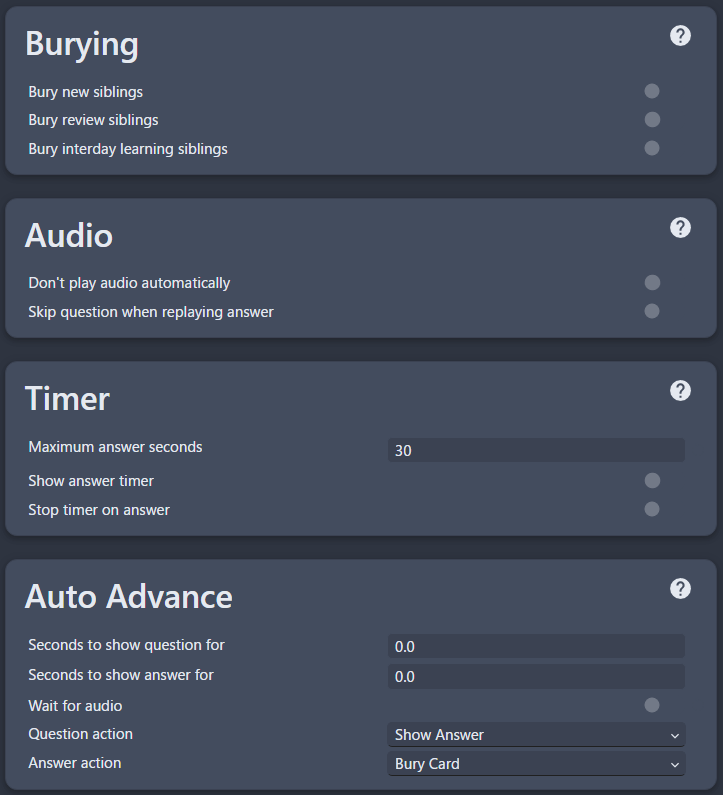
Deck's option(Cog icon) then copy the settings below-
(Settings 2) Turn on
FSRS- Put
Desired Retentionof0.80 Tools>FSRS4Anki Helper>Load Balance when rescheduling
- Put
-
(Settings 2) Until after 1 month, use
default parameters; after that:- Use
OptimizeandCompute minimum recommended retentionevery month - Replace the
Desired retentionafter the computation - (Optional)
Tools>FSRS4Anki Helper>Reschedule all Cards
- Use
-
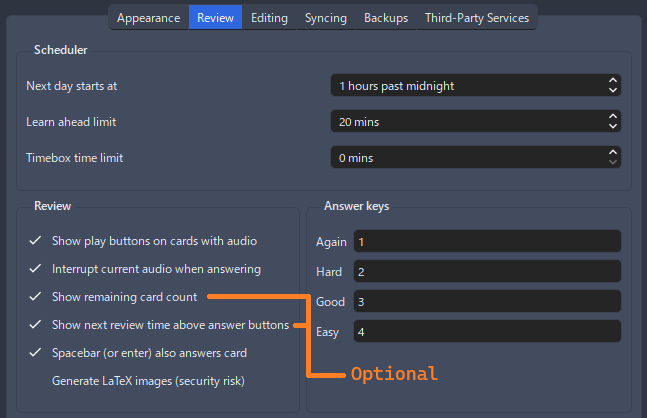
(Menu Bar - Top Left)
Tools>Preferencesand set the settings accordingly
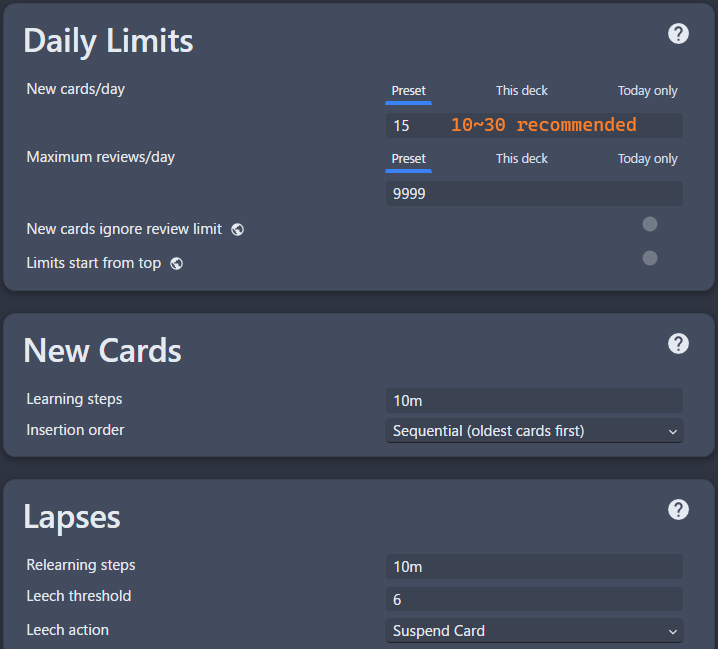
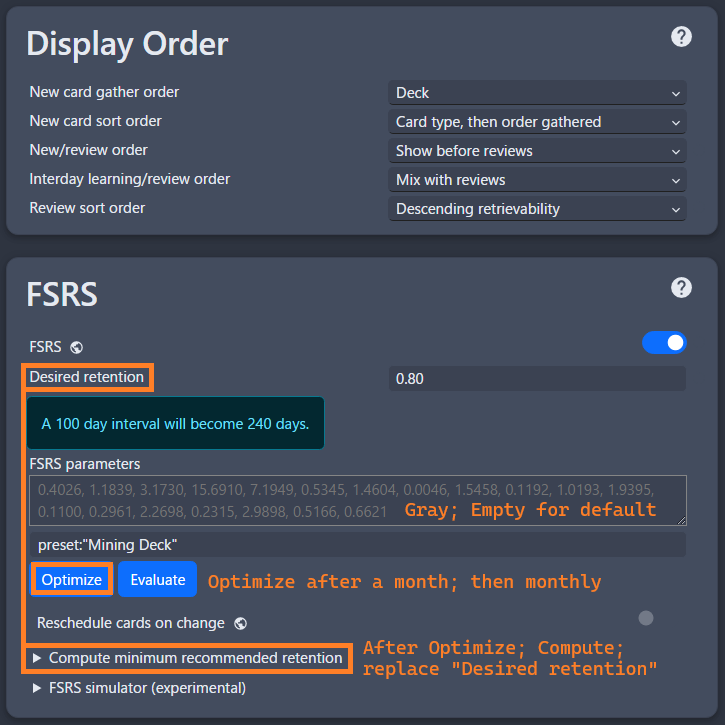
-
-
Restart your
Ankiand it should be good to go
You now have an Anki Template, next is Yomitan
If you have any problems check FAQs
Extra Info and Tips
Info 1: Anki Add-ons List
Anki Add-ons List (click here)
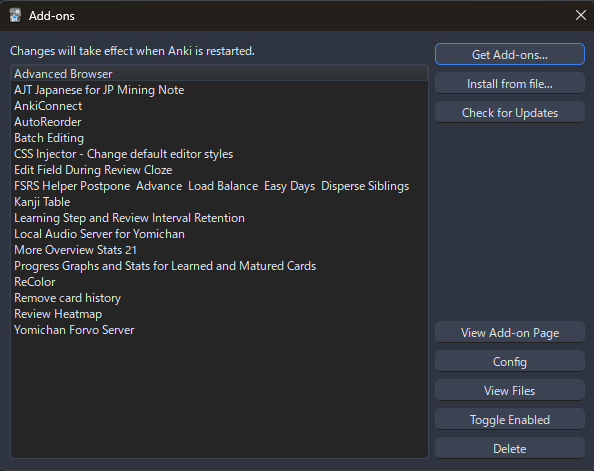
Here's the list of Anki Add-ons:
- You can search them by clicking
View Add-on Pageto know more about them - Most of them are in
Toolsin theTaskbar
Info 2: Anki Light and Dark Mode
Anki Light and Dark Mode (click here)
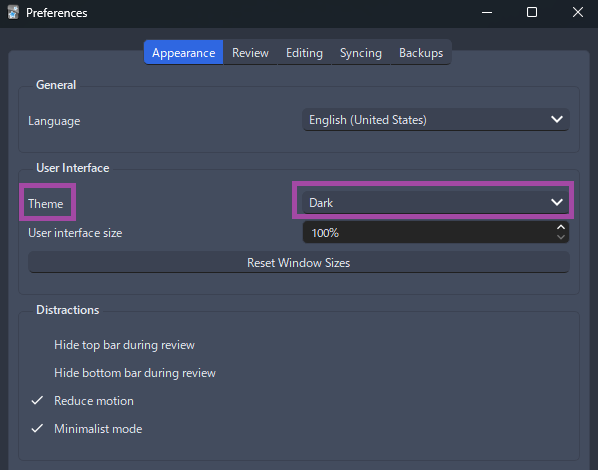
To change the anki theme, go to Tools > Preferences > Theme
Info 3: Retention How To
Retention How To (click here)
If you found yourself having low retention, go to Retention How-To for anki settings suggestions and other tips
Tip 1: When Reviewing on Anki
When Reviewing on Anki (click here)
- Just use
again (1 = I don't know the answer)orgood (spacebar or 3 = I know the answer)button when doing the deck so you don't have to think about if it'seasy (2)orhard (4)
Tip 2: Anki Keyboard Shortcuts
Anki Keyboard Shortcuts (click here)
When viewing a card, you can use shortcuts to expand for more info:
Q:Secondary DefinitionW:Extra Definition[:Extra Info
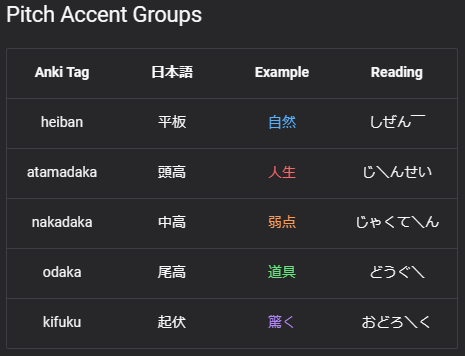
Tip 3: Anki Pitch Accent Color
Anki Pitch Accent Color (click here)
When viewing a card, they are color assigned with the following:
FAQs
Question 1: Where should I put more image aside from screenshot?
Where should I put more image aside from screenshot (click here)
-
Put it in
PrimaryDefinitionPictureinAnki -
You can paste the image while reviewing by going
Editmode orEshortcut
Question 2: Where can I ask if something is wrong with my JPMN Anki Format?
Where can I ask if something is wrong with my JPMN Anki Format? (click here)
- In JPMN's FAQ & Troubleshooting page
Question 3: How to change the styling like font or size?
How to change the styling like font or size? (click here)
-
In the same way as
Step 7, on the card'sstylingtab -
Scroll down until you find
/* ================ jp-mining-note: INSERT CUSTOM CSS BELOW ================ */ -
Changing anything not below that specific
line of codewill be reverted back once youupdatedthenote
Question 4: Can I rename the deck?
Can I rename the deck? (click here)
- Technically yes, but I wouldn't recommend; you have to resetup Yomitan's
Anki Card Formatand Anki's Add-onAutoReorder
Question 5: How can I use sentence card?
How can I use sentence card? (click here)
If you haven't yet, please setup Yomitan first (The next guide after this)
Okay, I've already set it up! (click here)
In your Yomitan settings > Anki > Configure Anki flashcards...
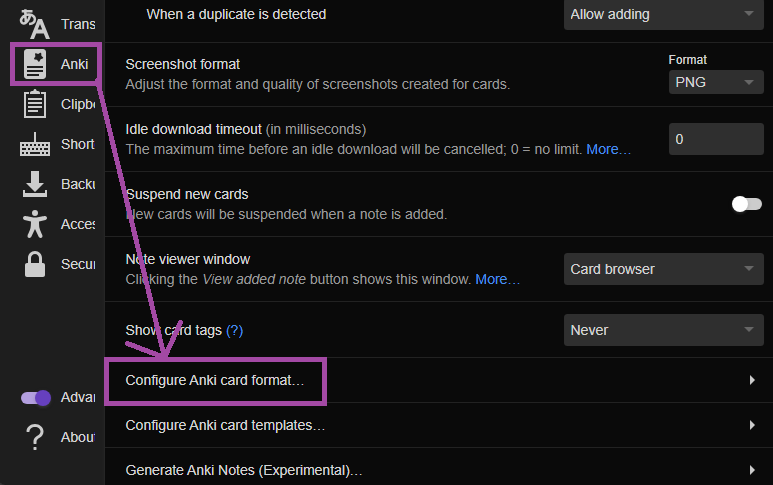
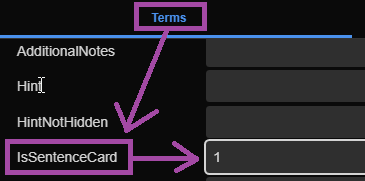
In Terms scroll down and find IsSentenceCard and put 1 then close the window
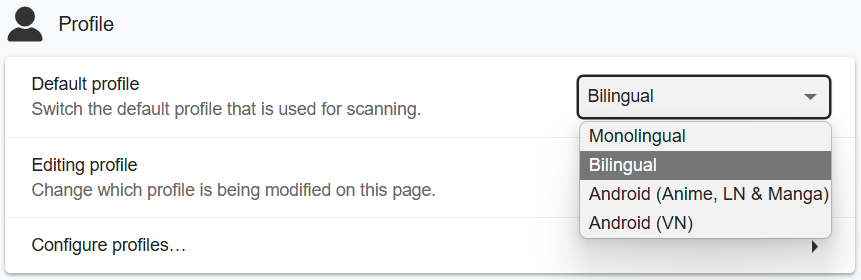
Now apply it on every profile under Editing Profile and make sure Monolingual, Bilingual, Android (Anime, LN & Manga) and Android (VN) got their config changed