- I recommend you to follow the current guide that's not on the Archive
I'm aware that this is an Archive (click here)
Setup Yomitan PC
Download and Install
-
Install Yomitan Chrome or Yomitan Firefox
-
Download
yomitan dictionary,lazyGuide-yomitan-settings(download both) andFontfrom here- Extract(?)
Font.7zandyomitan dictionary.7z(Pass:lazyguide) yomitan dictionary.7zshould only be extracted once,don't extract the dictionaryitself
- Extract(?)
Setting Up
-
On
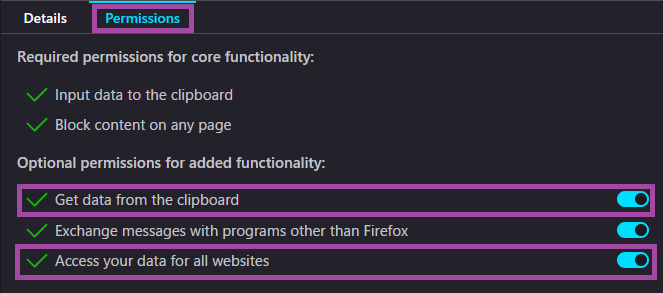
Yomitan's welcome page, scroll down >Permissions page> enableclipboardReadandnativeMessaging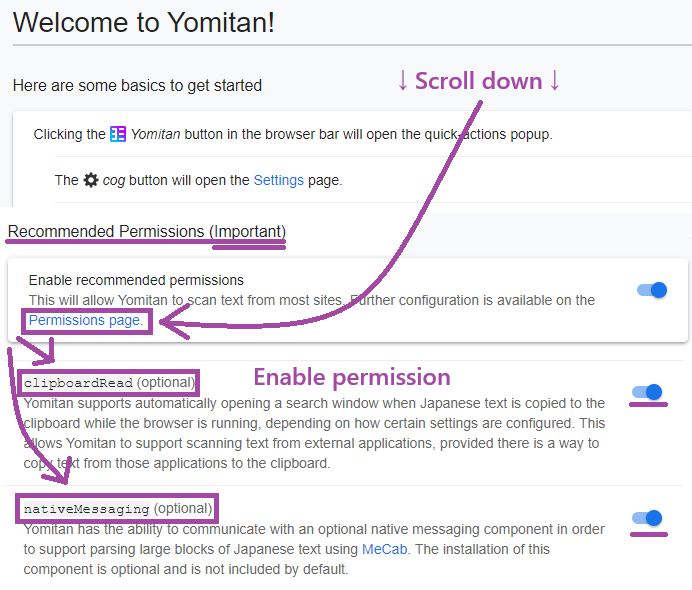
-
Go to
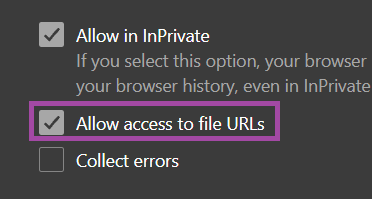
chrome://extensionsoredge://extensionsorabout:addons(firefox) and go toYomitanextension settings -
Make sure for:
- Chrome/Edge:
Allow access to file URLsis enabled - Firefox:
Access your data for all websitesis enabled
- Chrome/Edge:
-
Install the
Fontsby opening them from theFontfolder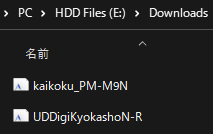
-
Go to
Yomitan’s settings page (Click on the extension’s icon then click on the cog icon from the popup)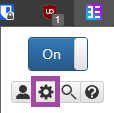
-
Go to
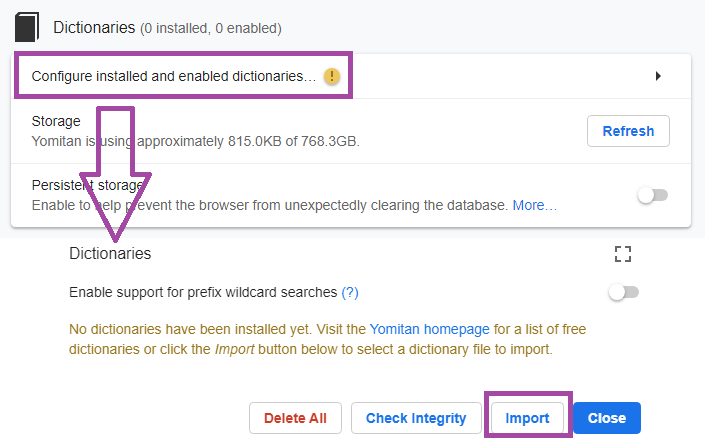
Dictionary>Configure installed and enabled dictionaries...>Import- Import all the dictionaries from
yomitan dictionaryfolder (You can select them all and import all at once)
- Import all the dictionaries from
-
Then Scroll down, in
Backup>Import Settings>lazyGuide-yomitan-settings(from the extracted folder)- If you are interested on installing Yomitan Local Audio pick
lazyGuide-local-audio-yomitan-settings, otherwiselazyGuide-non-local-audio-yomitan-settings -
ImportNOTSanitize and Import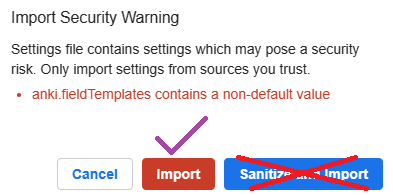
- If you are interested on installing Yomitan Local Audio pick
-
Pick a profile(
DefaultandEditing), usually betweenMonolingualandBilingual(other profiles will be discussed in other sections)-
Bilingualis default, you can holdaltwhile hovering over a word to use theMonolingualprofile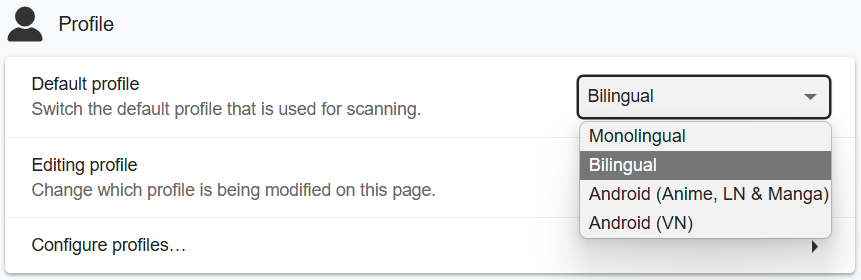
-
-
You should now be able to hover over words!
-
To change hotkey,
Yomitansettings >Scanning>Scan modifier key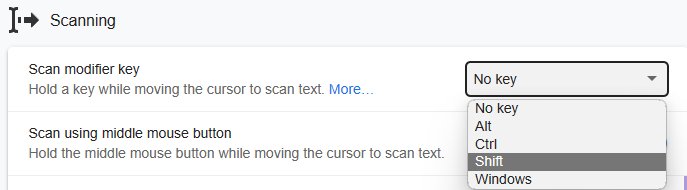
-
Yomitan on PC setup is done, why not check out how to use Yomitan on Android?
Proceed to Yomitan on Android Setup
If you have any problems check FAQs
Extra Info and Tips
Info 1: Yomitan Local Audio
Yomitan Local Audio (click here)
- Here's the source for more info or latest updates
- This might take an hour due to extraction; need Anki 2.1.50+
- Yomitan Local Audio Source for Android is also available but this(PC) setup is required
-
Download everything from the recommended
-
Within
Anki: eitherCtrl + Shift + AorTools>Add-ons>Get Add-ons...>1045800357> restartAnki -
Extract
local-yomitan-audio-collectionand paste theuser_filesfolder to:- On
Add-ons window> select theLocal Audio Server for Yomitan>View Files - Or
C:\Users\YourUser\AppData\Roaming\Anki2\addons21\1045800357
- On
-
My
local-audio-yomitansettings OR if you are not using my profile:- Go to
Yomitan settings>Audio>Configure audio playback sources...>Add>Custom URL (JSON) - Paste
http://localhost:5050/?term={term}&reading={reading}and make sure it's on the top
- Go to
-
Check if it's working:
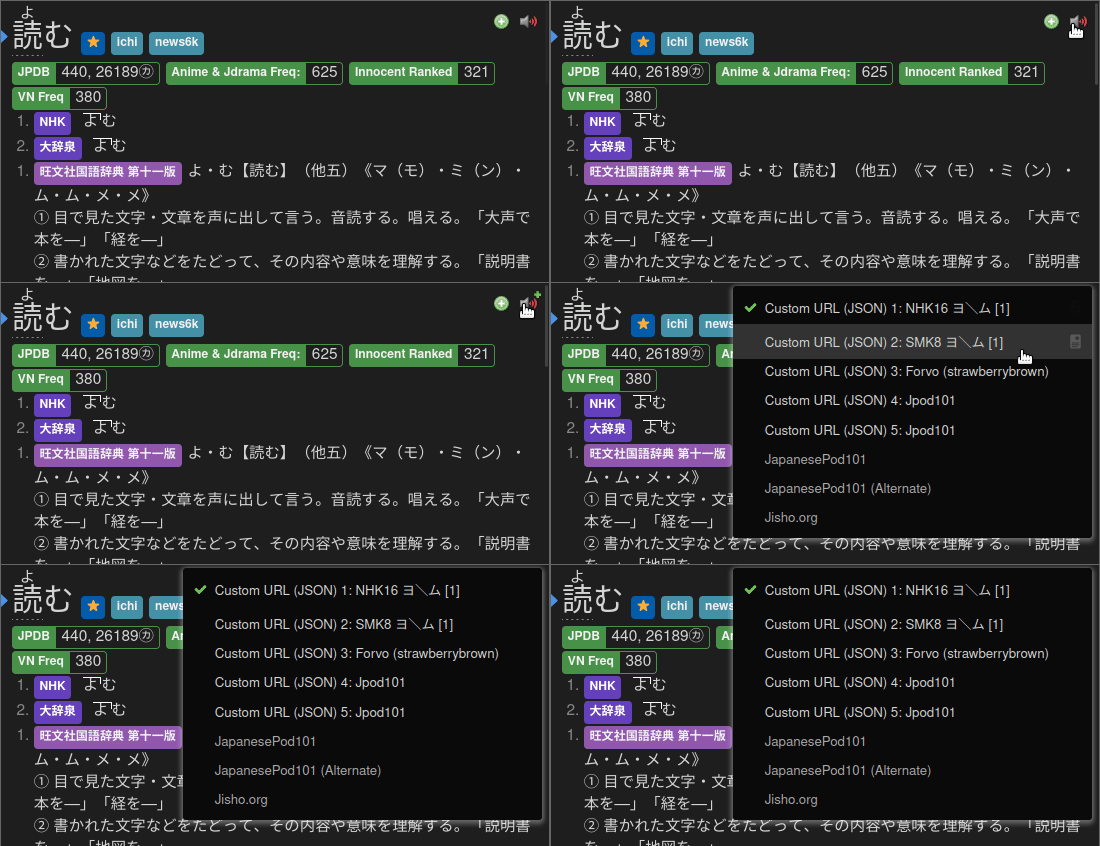
DONE!
Info 3: Yomitan Light and Dark Mode
Yomitan Light and Dark Mode (click here)
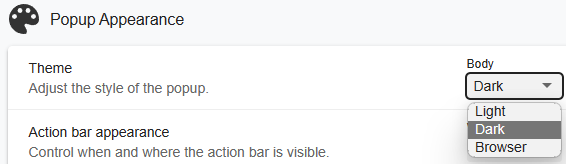
To change the Yomitan theme, go to Yomitan settings > Appearance > Theme
FAQs
Question 1: Can I add a Yomitan dictionary of my choice?
Can I add, delete or modify a Yomitan dictionary of my choice? (click here)
- Yes, most dictionaries should be compatible with the JPMN format
Question 2: How can I use sentence card?
How can I use sentence card? (click here)
In your Yomitan settings > Anki > Configure Anki flashcards...
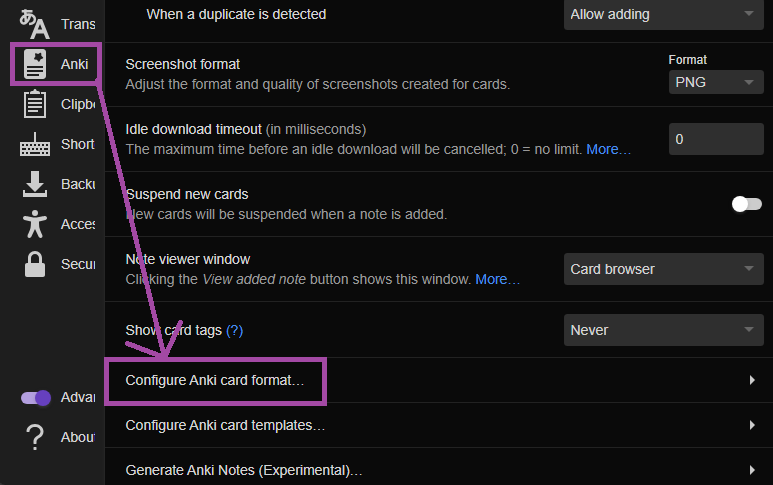
In Terms scroll down and find IsSentenceCard and put 1 then close the window
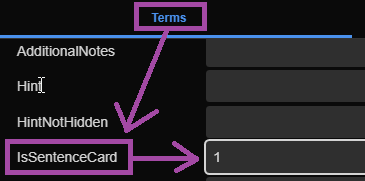
Now apply it on every profile under Editing Profile and make sure Monolingual, Bilingual, Android (LN & Manga) and Android (VN) got their config changed