Setup: Linux
-
All guides are compiled in a single page as most will diverge to the original guide
- To avoid confusion, I'll indicate if a guide is not needed (i.e. yomitan)
-
Work In Progress
- Have automated screenshot but no automated audio yet (check GSM if you like, but its too bloated for my "lazy" taste)
Prerequisite Packages (click here)
Prerequisite Packages
The compiled install if you are planning to follow everything:
Pacman
- 7zip (Optional)
- Anki
- Flatpak
- Python (for OCR/Manga)
- Zen Browser (Optional; based on firefox)
- Fcitx5
- Mozc
- Noto Sans JP
Flatpak
- OBS Studio
Paru (AUR)
- Faugus Launcher (For VN)
JP Input and Font Display (click here)
JP Input and Font Display
JP Input Install
- First, install the package for
fcitx5,mozcandnoto-sans jpfont - Create and open file
- Paste this config:
-
Then
CTRL + O> ENTER >CTRL + X -
You can now close the terminal
JP Input Setup
-
Relogin/restart your PC
-
KDE system settings > keyboard > virtual keyboard >
Fcitx 5 Wayland Launcher -
KDE system settings > keyboard > configure keybindings > 日本語キーボードオプション > make zenkaku hankaku an additional esc > OFF
-
KDE system settings > input method > add
Mozc(Sometimes its already there)
Font Display
-
Go to
~/.config/fontconfig/fonts.conf -
On your
fonts.conf, replace everything with the config below based on Arch Wiki:font.conf (click here)
<?xml version="1.0"?> <!DOCTYPE fontconfig SYSTEM "urn:fontconfig:fonts.dtd"> <fontconfig> <!-- Default serif font --> <alias binding="strong"> <family>serif</family> <prefer> <family>PT Serif</family> </prefer> </alias> <!-- Default sans-serif font --> <alias binding="strong"> <family>sans-serif</family> <prefer> <family>Roboto</family> </prefer> </alias> <!-- Default monospace font --> <alias binding="strong"> <family>monospace</family> <prefer> <family>Cascadia Code PL</family> </prefer> </alias> <!-- Default system-ui font --> <alias binding="strong"> <family>system-ui</family> <prefer> <family>Roboto</family> </prefer> </alias> <!-- Serif CJK --> <!-- Default serif when the "lang" attribute is not given --> <!-- You can change this font to the language variant you want --> <match target="pattern"> <test name="family"> <string>serif</string> </test> <edit name="family" mode="append" binding="strong"> <string>Noto Serif CJK SC</string> </edit> </match> <!-- Japanese --> <!-- "lang=ja" or "lang=ja-*" --> <match target="pattern"> <test name="lang" compare="contains"> <string>ja</string> </test> <test name="family"> <string>serif</string> </test> <edit name="family" mode="append" binding="strong"> <string>Noto Serif CJK JP</string> </edit> </match> <!-- Korean --> <!-- "lang=ko" or "lang=ko-*" --> <match target="pattern"> <test name="lang" compare="contains"> <string>ko</string> </test> <test name="family"> <string>serif</string> </test> <edit name="family" mode="append" binding="strong"> <string>Noto Serif CJK KR</string> </edit> </match> <!-- Chinese --> <!-- "lang=zh" or "lang=zh-*" --> <match target="pattern"> <test name="lang" compare="contains"> <string>zh</string> </test> <test name="family"> <string>serif</string> </test> <edit name="family" mode="append" binding="strong"> <string>Noto Serif CJK SC</string> </edit> </match> <!-- "lang=zh-hans" or "lang=zh-hans-*" --> <match target="pattern"> <test name="lang" compare="contains"> <string>zh-hans</string> </test> <test name="family"> <string>serif</string> </test> <edit name="family" mode="append" binding="strong"> <string>Noto Serif CJK SC</string> </edit> </match> <!-- "lang=zh-hant" or "lang=zh-hant-*" --> <match target="pattern"> <test name="lang" compare="contains"> <string>zh-hant</string> </test> <test name="family"> <string>serif</string> </test> <edit name="family" mode="append" binding="strong"> <string>Noto Serif CJK TC</string> </edit> </match> <!-- Compatible --> <!-- "lang=zh-cn" or "lang=zh-cn-*" --> <match target="pattern"> <test name="lang" compare="contains"> <string>zh-cn</string> </test> <test name="family"> <string>serif</string> </test> <edit name="family" mode="append" binding="strong"> <string>Noto Serif CJK SC</string> </edit> </match> <!-- "lang=zh-tw" or "lang=zh-tw-*" --> <match target="pattern"> <test name="lang" compare="contains"> <string>zh-tw</string> </test> <test name="family"> <string>serif</string> </test> <edit name="family" mode="append" binding="strong"> <string>Noto Serif CJK TC</string> </edit> </match> <!-- Sans CJK --> <!-- Default sans-serif when the "lang" attribute is not given --> <!-- You can change this font to the language variant you want --> <match target="pattern"> <test name="family"> <string>sans-serif</string> </test> <edit name="family" mode="append" binding="strong"> <string>Noto Sans CJK SC</string> </edit> </match> <!-- Japanese --> <!-- "lang=ja" or "lang=ja-*" --> <match target="pattern"> <test name="lang" compare="contains"> <string>ja</string> </test> <test name="family"> <string>sans-serif</string> </test> <edit name="family" mode="append" binding="strong"> <string>Noto Sans CJK JP</string> </edit> </match> <!-- Korean --> <!-- "lang=ko" or "lang=ko-*" --> <match target="pattern"> <test name="lang" compare="contains"> <string>ko</string> </test> <test name="family"> <string>sans-serif</string> </test> <edit name="family" mode="append" binding="strong"> <string>Noto Sans CJK KR</string> </edit> </match> <!-- Chinese --> <!-- "lang=zh" or "lang=zh-*" --> <match target="pattern"> <test name="lang" compare="contains"> <string>zh</string> </test> <test name="family"> <string>sans-serif</string> </test> <edit name="family" mode="append" binding="strong"> <string>Noto Sans CJK SC</string> </edit> </match> <!-- "lang=zh-hans" or "lang=zh-hans-*" --> <match target="pattern"> <test name="lang" compare="contains"> <string>zh-hans</string> </test> <test name="family"> <string>sans-serif</string> </test> <edit name="family" mode="append" binding="strong"> <string>Noto Sans CJK SC</string> </edit> </match> <!-- "lang=zh-hant" or "lang=zh-hant-*" --> <match target="pattern"> <test name="lang" compare="contains"> <string>zh-hant</string> </test> <test name="family"> <string>sans-serif</string> </test> <edit name="family" mode="append" binding="strong"> <string>Noto Sans CJK TC</string> </edit> </match> <!-- "lang=zh-hant-hk" or "lang=zh-hant-hk-*" --> <match target="pattern"> <test name="lang" compare="contains"> <string>zh-hant-hk</string> </test> <test name="family"> <string>sans-serif</string> </test> <edit name="family" mode="append" binding="strong"> <string>Noto Sans CJK HK</string> </edit> </match> <!-- Compatible --> <!-- "lang=zh-cn" or "lang=zh-cn-*" --> <match target="pattern"> <test name="lang" compare="contains"> <string>zh-cn</string> </test> <test name="family"> <string>sans-serif</string> </test> <edit name="family" mode="append" binding="strong"> <string>Noto Sans CJK SC</string> </edit> </match> <!-- "lang=zh-tw" or "lang=zh-tw-*" --> <match target="pattern"> <test name="lang" compare="contains"> <string>zh-tw</string> </test> <test name="family"> <string>sans-serif</string> </test> <edit name="family" mode="append" binding="strong"> <string>Noto Sans CJK TC</string> </edit> </match> <!-- "lang=zh-hk" or "lang=zh-hk-*" --> <match target="pattern"> <test name="lang" compare="contains"> <string>zh-hk</string> </test> <test name="family"> <string>sans-serif</string> </test> <edit name="family" mode="append" binding="strong"> <string>Noto Sans CJK HK</string> </edit> </match> <!-- Mono CJK --> <!-- Default monospace when the "lang" attribute is not given --> <!-- You can change this font to the language variant you want --> <match target="pattern"> <test name="family"> <string>monospace</string> </test> <edit name="family" mode="append" binding="strong"> <string>Noto Sans Mono CJK SC</string> </edit> </match> <!-- Japanese --> <!-- "lang=ja" or "lang=ja-*" --> <match target="pattern"> <test name="lang" compare="contains"> <string>ja</string> </test> <test name="family"> <string>monospace</string> </test> <edit name="family" mode="append" binding="strong"> <string>Noto Sans Mono CJK JP</string> </edit> </match> <!-- Korean --> <!-- "lang=ko" or "lang=ko-*" --> <match target="pattern"> <test name="lang" compare="contains"> <string>ko</string> </test> <test name="family"> <string>monospace</string> </test> <edit name="family" mode="append" binding="strong"> <string>Noto Sans Mono CJK KR</string> </edit> </match> <!-- Chinese --> <!-- "lang=zh" or "lang=zh-*" --> <match target="pattern"> <test name="lang" compare="contains"> <string>zh</string> </test> <test name="family"> <string>monospace</string> </test> <edit name="family" mode="append" binding="strong"> <string>Noto Sans Mono CJK SC</string> </edit> </match> <!-- "lang=zh-hans" or "lang=zh-hans-*" --> <match target="pattern"> <test name="lang" compare="contains"> <string>zh-hans</string> </test> <test name="family"> <string>monospace</string> </test> <edit name="family" mode="append" binding="strong"> <string>Noto Sans Mono CJK SC</string> </edit> </match> <!-- "lang=zh-hant" or "lang=zh-hant-*" --> <match target="pattern"> <test name="lang" compare="contains"> <string>zh-hant</string> </test> <test name="family"> <string>monospace</string> </test> <edit name="family" mode="append" binding="strong"> <string>Noto Sans Mono CJK TC</string> </edit> </match> <!-- "lang=zh-hant-hk" or "lang=zh-hant-hk-*" --> <match target="pattern"> <test name="lang" compare="contains"> <string>zh-hant-hk</string> </test> <test name="family"> <string>monospace</string> </test> <edit name="family" mode="append" binding="strong"> <string>Noto Sans Mono CJK HK</string> </edit> </match> <!-- Compatible --> <!-- "lang=zh-cn" or "lang=zh-cn-*" --> <match target="pattern"> <test name="lang" compare="contains"> <string>zh-cn</string> </test> <test name="family"> <string>monospace</string> </test> <edit name="family" mode="append" binding="strong"> <string>Noto Sans Mono CJK SC</string> </edit> </match> <!-- "lang=zh-tw" or "lang=zh-tw-*" --> <match target="pattern"> <test name="lang" compare="contains"> <string>zh-tw</string> </test> <test name="family"> <string>monospace</string> </test> <edit name="family" mode="append" binding="strong"> <string>Noto Sans Mono CJK TC</string> </edit> </match> <!-- "lang=zh-hk" or "lang=zh-hk-*" --> <match target="pattern"> <test name="lang" compare="contains"> <string>zh-hk</string> </test> <test name="family"> <string>monospace</string> </test> <edit name="family" mode="append" binding="strong"> <string>Noto Sans Mono CJK HK</string> </edit> </match> <!-- System UI CJK --> <!-- Default system-ui when the "lang" attribute is not given --> <!-- You can change this font to the language variant you want --> <match target="pattern"> <test name="family"> <string>system-ui</string> </test> <edit name="family" mode="append" binding="strong"> <string>Noto Sans CJK SC</string> </edit> </match> <!-- Japanese --> <!-- "lang=ja" or "lang=ja-*" --> <match target="pattern"> <test name="lang" compare="contains"> <string>ja</string> </test> <test name="family"> <string>system-ui</string> </test> <edit name="family" mode="append" binding="strong"> <string>Noto Sans CJK JP</string> </edit> </match> <!-- Korean --> <!-- "lang=ko" or "lang=ko-*" --> <match target="pattern"> <test name="lang" compare="contains"> <string>ko</string> </test> <test name="family"> <string>system-ui</string> </test> <edit name="family" mode="append" binding="strong"> <string>Noto Sans CJK KR</string> </edit> </match> <!-- Chinese --> <!-- "lang=zh" or "lang=zh-*" --> <match target="pattern"> <test name="lang" compare="contains"> <string>zh</string> </test> <test name="family"> <string>system-ui</string> </test> <edit name="family" mode="append" binding="strong"> <string>Noto Sans CJK SC</string> </edit> </match> <!-- "lang=zh-hans" or "lang=zh-hans-*" --> <match target="pattern"> <test name="lang" compare="contains"> <string>zh-hans</string> </test> <test name="family"> <string>system-ui</string> </test> <edit name="family" mode="append" binding="strong"> <string>Noto Sans CJK SC</string> </edit> </match> <!-- "lang=zh-hant" or "lang=zh-hant-*" --> <match target="pattern"> <test name="lang" compare="contains"> <string>zh-hant</string> </test> <test name="family"> <string>system-ui</string> </test> <edit name="family" mode="append" binding="strong"> <string>Noto Sans CJK TC</string> </edit> </match> <!-- "lang=zh-hant-hk" or "lang=zh-hant-hk-*" --> <match target="pattern"> <test name="lang" compare="contains"> <string>zh-hant-hk</string> </test> <test name="family"> <string>system-ui</string> </test> <edit name="family" mode="append" binding="strong"> <string>Noto Sans CJK HK</string> </edit> </match> <!-- Compatible --> <!-- "lang=zh-cn" or "lang=zh-cn-*" --> <match target="pattern"> <test name="lang" compare="contains"> <string>zh-cn</string> </test> <test name="family"> <string>system-ui</string> </test> <edit name="family" mode="append" binding="strong"> <string>Noto Sans CJK SC</string> </edit> </match> <!-- "lang=zh-tw" or "lang=zh-tw-*" --> <match target="pattern"> <test name="lang" compare="contains"> <string>zh-tw</string> </test> <test name="family"> <string>system-ui</string> </test> <edit name="family" mode="append" binding="strong"> <string>Noto Sans CJK TC</string> </edit> </match> <!-- "lang=zh-hk" or "lang=zh-hk-*" --> <match target="pattern"> <test name="lang" compare="contains"> <string>zh-hk</string> </test> <test name="family"> <string>system-ui</string> </test> <edit name="family" mode="append" binding="strong"> <string>Noto Sans CJK HK</string> </edit> </match> </fontconfig> -
Then, on your
terminal, refresh your font -
Go to your Zen browser/Firefox settings > change to
Noto Sans CJK JP(advanced settings) -
Done!
Anki (click here)
Anki
Anki Install
- Install
Anki
Anki Setup
-
You can now follow Setup: Anki
- For step 2's extracting of
addons, go to~/.var/app/net.ankiweb.Anki/data/Anki2/
- For step 2's extracting of
-
Done!
Yomitan (click here)
Yomitan
Yomitan Setup
-
Just go straight to Setup: Yomitan PC and do the firefox way (even for zen browser)
-
Done!
Screenshot Mining (click here)
Screenshot Mining
Requirements
-
Download auto_screenshot anki addon (credits to kamper)
-
Install Anki and
OBS Studio
Screenshot Mining Setup
-
Open your Anki, then
Ctrl + Shift + AORTools>Add-ons>View Files(to openaddonsfolder) -
Extract(?)
auto_screenshot.7z(Pass:lazyguide) and paste theauto_screenshotfolder to youraddonsfolder -
Restart
Anki, then go toTools>Mining Mode>obs(if not set already)- You can turn off
obs modeif you want to turn off screenshot feature
- You can turn off
-
Open
OBS Studioand skip the auto configs if it appears-
Then on your bottom left at
Sources> addScreen Capture> Create New > Confirm > add your wholedisplayor aspecified application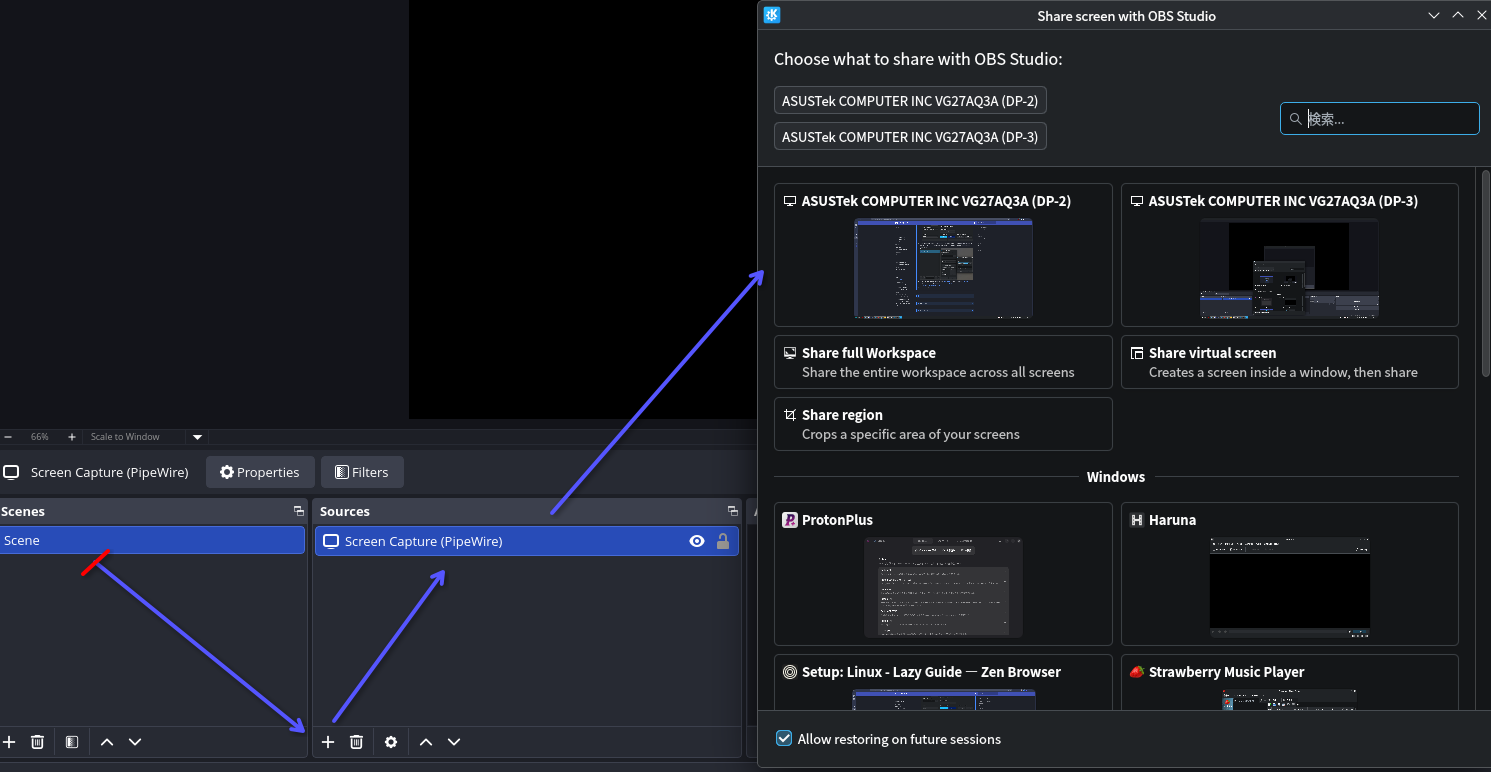
-
-
OBS Studiolook at toolbar > Tools > Websocket Server Settings >Enable Websocket serverand disableEnable Authentication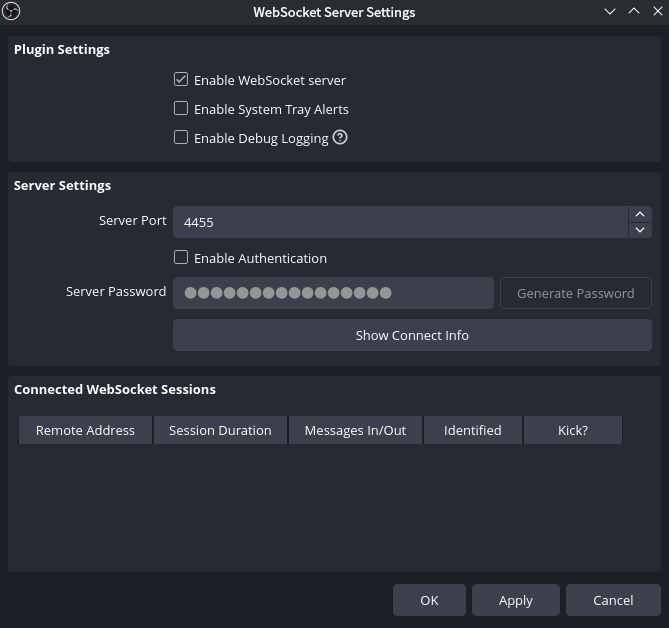
-
On system tray >
OBS Studioicon > right click > Hide (if you are bothered)- Make sure to always have
AnkiandOBS Studio
- Make sure to always have
-
You can now mine and it will now auto screenshot anything you mine with the current set
Scenewindow- If you got an error on
mining, make sure to restartAnki(After making sure its onMining Mode: OBSandOBS Studiorunning)
- If you got an error on
Visual Novel (click here)
Visual Novel
Note that this has been only tested for non-steam VNs
Requirements
- Yomitan On PC already set-up
-
Download Textractor 5.2.0 and extract(?) (Pass:
lazyguide) -
Install
Faugus Launcher
Setting System Locale - JP
-
On your terminal go to:
-
Scroll down then uncomment(remove the #)
#ja_JP.UTF-8 UTF-8> to becomeja_JP.UTF-8 UTF-8- It is alphabetical, search carefully
-
Afterwards, run this command:
Visual Novel Setup
-
Open
Faugus Launcherthen go to settings > Global Environment Variables > Add:LC_ALL=ja_jp.UTF-8TZ=Asia/TokyoPROTON_ENABLE_WAYLAND=0(Optional - better for compatibility; such as no video playing)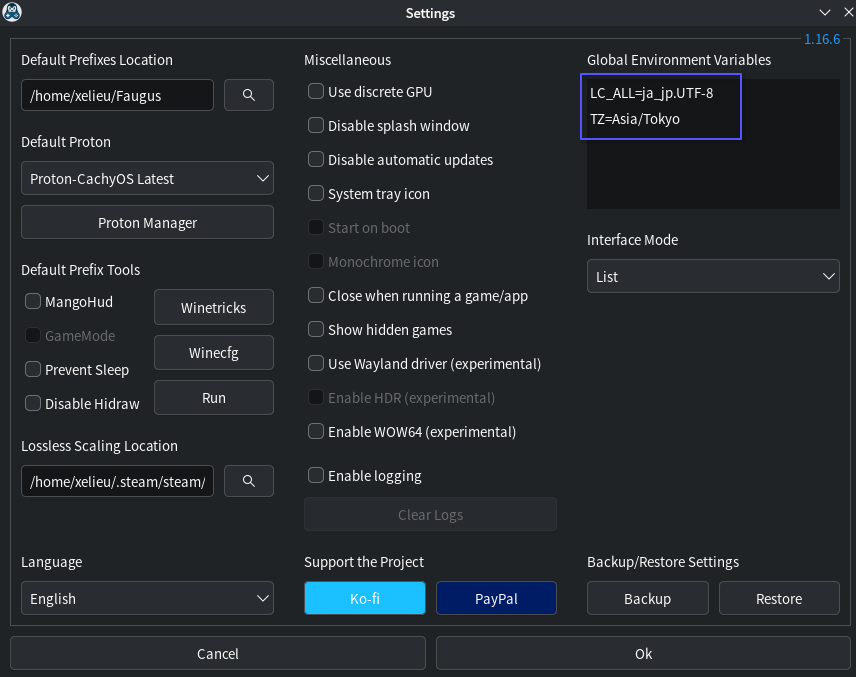
-
On your Faugus Launcher, click the
add (+)button > Game/App > Path > link yourVisual Novel's .exefile -
Right click your VN > Edit > Tools tab > Additional Application > Enable > Path > add your
Textractor .exe(x86 is recommended)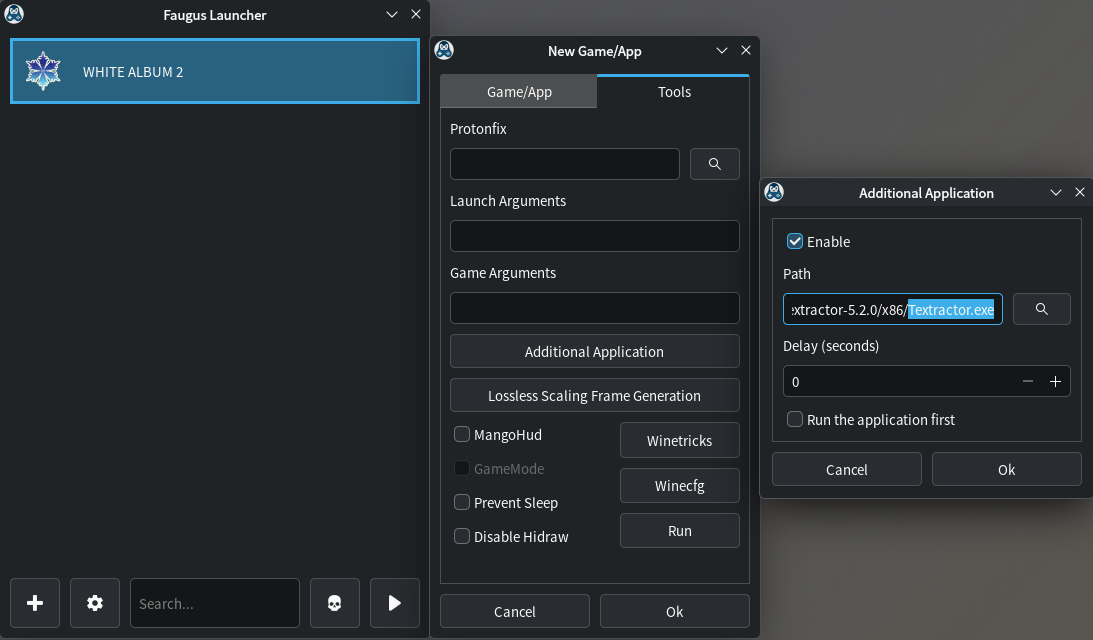
-
You can now follow the rest of the instructions on Setup: VN on PC starting from
step 3on Textractor- After generating text on
Textractor, the usual suspect is Info 3: Textractor not showing Japanese characters properly; square-like glyphs
- After generating text on
-
Done! Enjoy your VN
OCR (click here)
OCR
OCR Package Install
- On your terminal, paste:
OCR Setup
-
On your terminal, make a
Pythonenvironment: -
Then install
owocr -
We will be using the the default screenshot app
Spectacle>Meta + Shift + S> Options -
Set all these settings under
GeneralTab- After screenshot > Copy Image to clipboard
- Under
Region Selection>Don't do anything(both options)
-
Then go to
Save Location(2nd) Tab- Set your save location path:
"/path/to/your/OCR Picture/"- Same path for
step 10&OCR Shortcutbelow
- Same path for
- Set your save location path:
-
Shortcut
- Region Capture(領域を撮影) >
Meta + Shift + S(make this the default instead)
- Region Capture(領域を撮影) >
-
You can turn off the notification once it appears on your bottom right after capture
-
Usage:
- OCR: once captured; click
Saveand it will be automatically OCR'd - non-OCR: once captured; Either click
Copy(to clipboard) orSave as...to define a path
- OCR: once captured; click
-
You can now use
OWOCRfrom afolder(recommended) orclipboard -
Folder(save & close):
-
Clipboard:
- Done!
OCR Shortcut(auto start-up)
-
Create a shortcut file:
-
Paste this and save(folder method recommended):
-
Folder(change the path):
-
Clipboard:
-
-
KDE system settings > automatic startup > add
start_owocr.sh(will work upon restart) -
(Optional) On your taskbar find
owocr(uwu icon) > configure > engines > Primary:Chrome Screen AI& Secondary:Manga OCR (segmented) -
Done!
Manga (click here)
Manga
Manga Package Install
- On your terminal, paste:
OCR
- Refer to OCR
Mokuro Manga (Online Processing Method)
- Follow Setup: Manga on PC - Online Processing Method as is
Mokuro Manga (Local Processing Method)
-
We can just reuse our
Otherwise if its your first time generating the env run this instead:jptools-envenvironment used inowocr(yes, you need env everytime to use python) -
Install mokuro
-
Two options to process, go to
terminalthen:- All Manga volumes:
- Paste:
mokuro --parent_dir F:\Manga\Saenai- Replace full directory, Saenai with your manga name(no white-spaces)
- Your vol1, 2, 3, etc. should be inside
Saenai folderin ascending uniform named order
- Paste:
- Specific Manga volume:
- Paste:
mokuro F:\Manga\Saenai\Vol3- Replace full directory, Saenai with your manga name(no white-spaces) and volume #
- Paste:
- All Manga volumes:
-
Done!
Reading Processed Manga
-
Again, just follow Setup: Manga on PC - Reading Processed Manga
-
Done!
Anime (click here)
Anime
Requirements
- Yomitan On PC already set-up
Anime Setup
-
Just go straight to Setup: Anime on PC
- Ignore the chrome/edge instructions
-
Done!
Gaming (click here)
Gaming
Installing gaming packages/launchers
Non steam game setup/EXEs can be launched by adding it through steam as non-steam game > options > compatibility mode > Proton CachyOS (Latest)
- Faugus is for VNs
- ProtonPlus is for Proton used to be able to launch windows games/apps on Linux
- Twintail is for gacha games
In your terminal paste this:
In ProtonPlus(after install) Install Proton-CachyOS (Latest)
Then on your steam:
- Downloads > shader cache > off / download while game on
- Interface > Language > Japanese / Start Up Location: Library
- Compatibility > Proton-CachyOS Latest
Global Environment Setup
-
In terminal paste this:
-
Choose between AMD/Nvidia (GPU), paste this then save (CTRL + S).
-
Restart your PC.
-
NOTE: You can pretty much just focus on Steam and ignore Lutris/Heroic since you can install it on Steam alone.
- Lutris has support for GOG/Epic/EA/Ubisoft in case you need them, under Runners > Wine > Settings > Wine version > Proton-CachyOS (Latest)
Reference: CachyOS Gaming
Not so lazy guide isn't it? Linux setup is finally done, how about checking Sub Guide?